How to Convert Make.com Scenarios into n8n Workflows: A Complete Migration Guide
Migrate from Make.com to n8n with migromat. Use Make's scenario blueprint template to export scenarios, upload JSON files, and convert them into reviewable n8n workflows.
Moving from Make.com to n8n gives teams more control over workflow execution, hosting, and review. migromat reads exported Make scenario blueprint JSON, maps the scenario structure into n8n concepts, and prepares a workflow output that your team can inspect before activation.
1. Export your Make.com scenarios
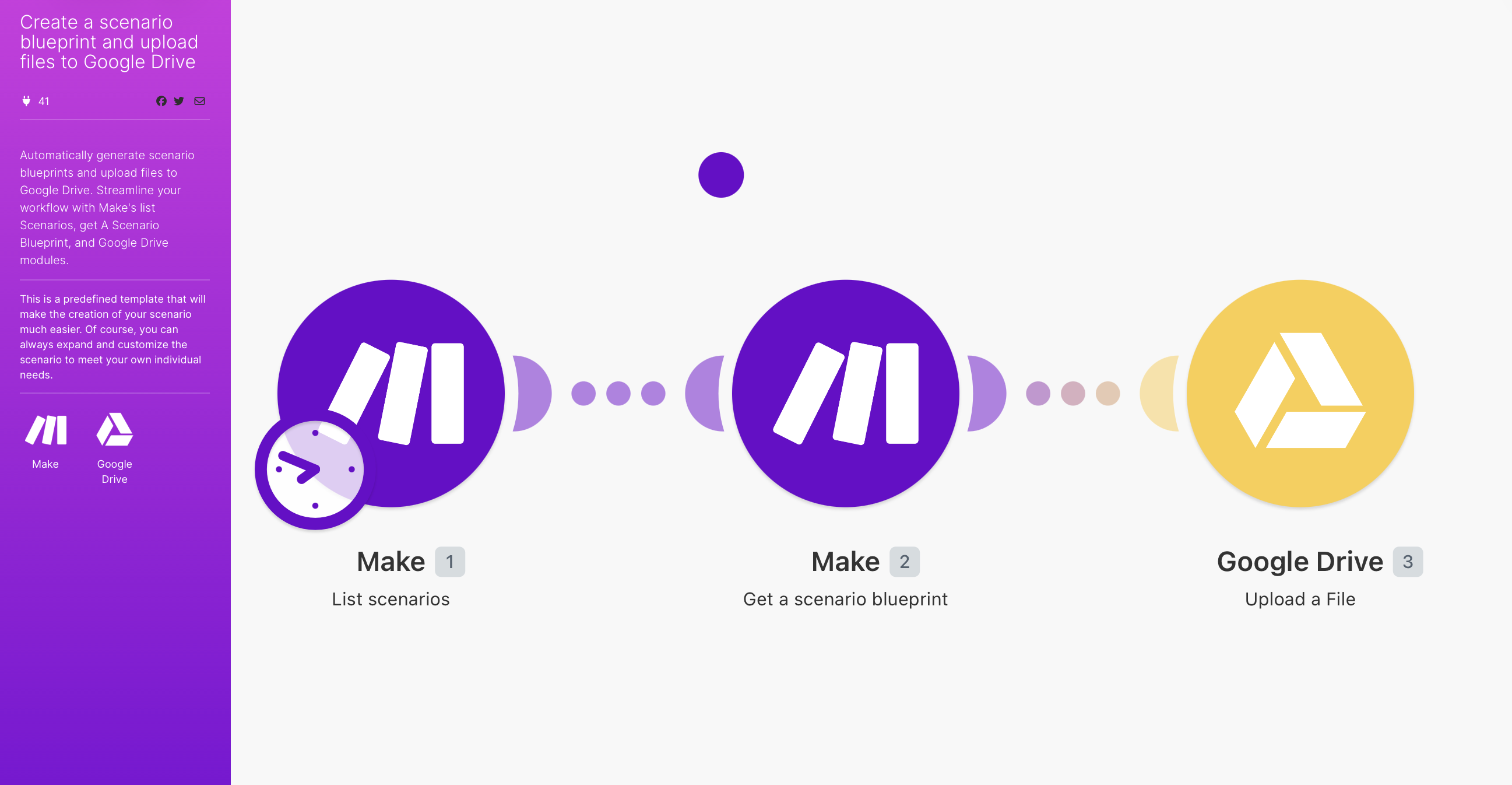
Start by exporting scenario blueprint JSON from Make. Use Make's template to create a blueprint for each scenario and upload the resulting files to Google Drive, then download the JSON files and drop them into migromat's upload form. The export does not include credentials or API keys.
Open the Make scenario blueprint template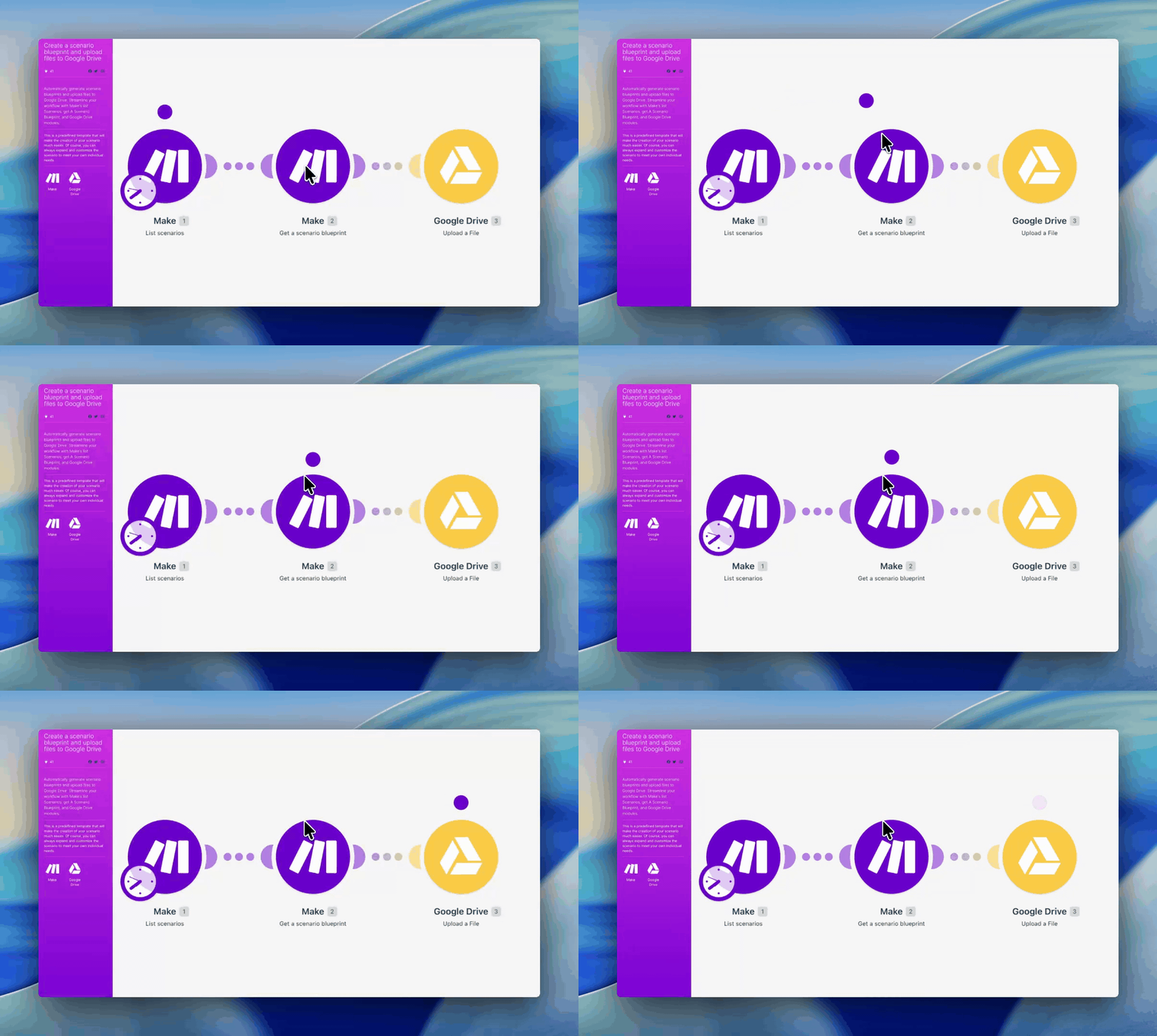
- Open the Make scenario blueprint template and add it to the Make organization that owns your scenarios.
- Connect the Make and Google Drive modules, then choose the Drive folder for the exported blueprints.
- Run the template, download the generated scenario blueprint JSON files from Google Drive, and upload those files to migromat.
2. Let migromat map the workflow logic
Upload the exported Make scenario blueprint JSON files to migromat. The converter inspects the scenario structure, finds equivalent n8n nodes where possible, and flags the places that need human review.
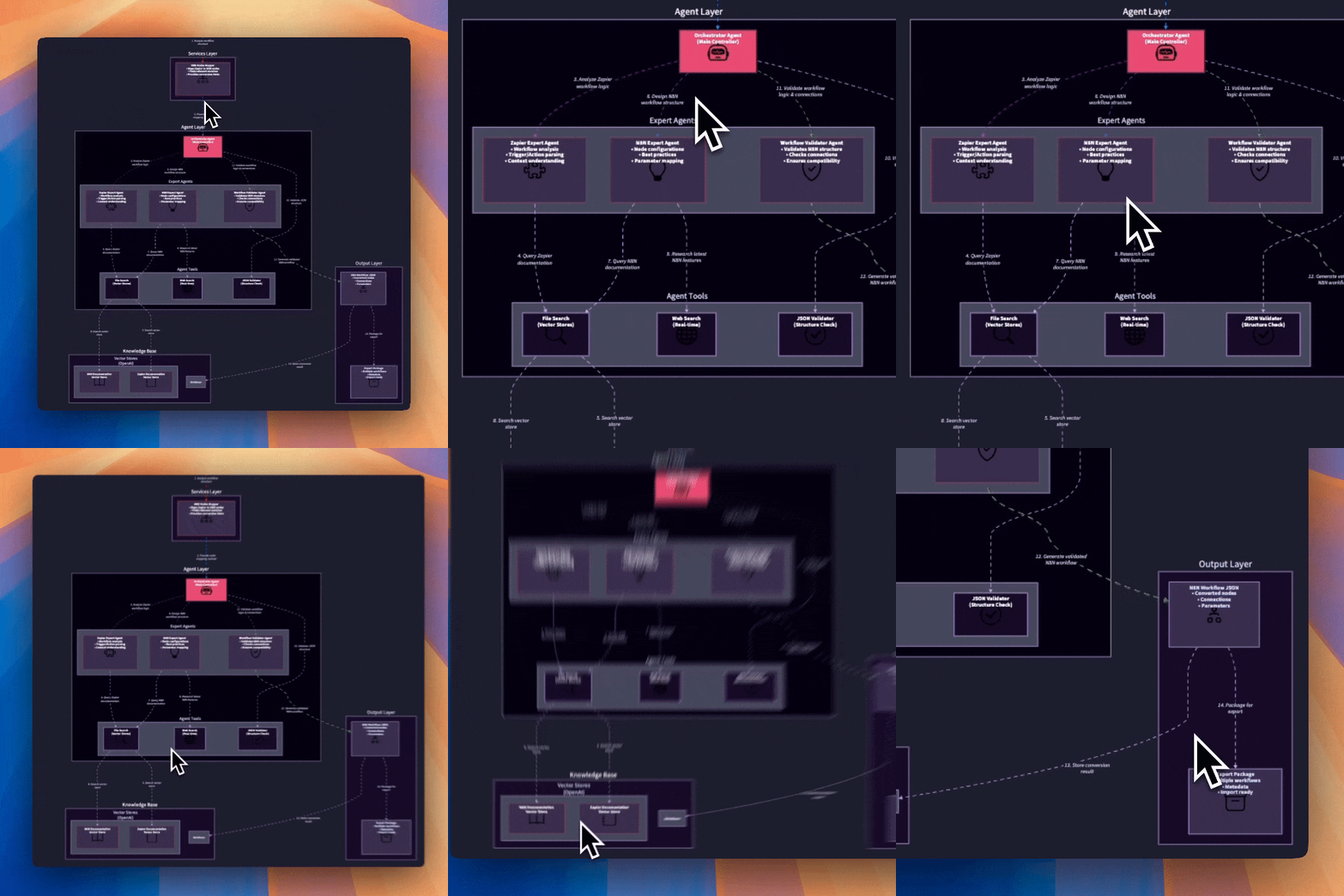
- Parse the Make scenario blueprint structure.
- Map modules, routers, filters, schedules, iterators, and field mappings to n8n concepts.
- Prepare conversion notes for steps that need manual review.
3. Import, reconnect, and test in n8n
Once conversion is complete, export the generated n8n workflow JSON, import it into n8n Cloud or your self-hosted instance, then reconnect credentials directly in n8n.
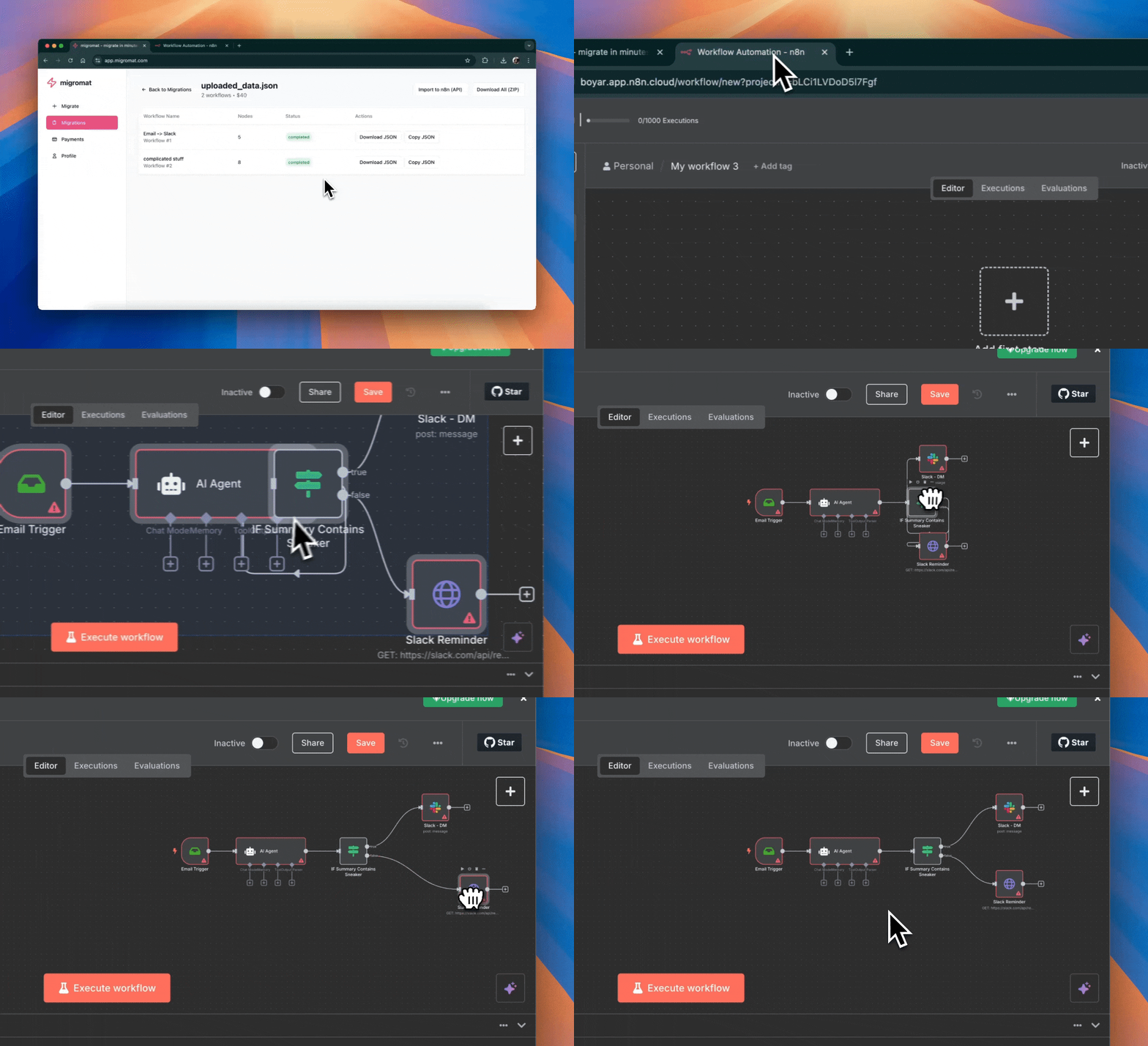
- Import the generated JSON into n8n.
- Reconnect credentials and app accounts in n8n.
- Run test executions to verify router filters, schedule or webhook triggers, and bundle-to-item behavior before activating production workflows.
Ready to try the workflow?
Export your scenario blueprints with the Make template, upload the JSON files to migromat, review the generated n8n workflow, reconnect credentials inside n8n, and test with representative data before activation.
Start your migration